 ECode
开始前Before you start
先向 IT 管理员要这几样东西:
Get these from your IT admin first:
- 公司下载页的地址,形如
https://<公司 ECode 地址>/about。 - 一把下载密钥。
- 公司的企业码。下载页上也写着它。
- 网络接入说明。参考环境要求电脑先接入企业内网。你公司的网络要求以 IT 的说明为准。
- The address of your company's download page, in the form
https://<company ECode address>/about. - A download key.
- Your company's enterprise code. The download page shows it too.
- Network instructions. The reference environment requires your computer to join the company's private network first. Your IT team's instructions take precedence.
The screenshots on this page show the client in Chinese. The steps give each label as it appears in the English interface.
下载客户端Download the client
- 在浏览器打开 IT 给你的下载页地址。
- 页面上有你所用平台的下载按钮,例如 macOS · Apple Silicon 或 Windows · x64。点击它。
- 在输入框里粘贴下载密钥,点击 下载。
- 页面显示「验证通过,即将开始下载…」,浏览器开始下载安装包。
- Open the download page address from IT in your browser.
- Click the download button for your platform, for example macOS · Apple Silicon or Windows · x64.
- Paste your download key into the box and click Download.
- The page shows “Verified. Starting the download…” and your browser starts downloading the installer.
下载链接约 10 分钟内有效。过期后重新输入密钥即可。密钥只给你自己用,不要转发给公司以外的人。
The download link stays valid for about 10 minutes. If it expires, enter your key again. The key is for you alone, so never pass it to anyone outside the company.
所有公司用同一个 ECode 安装包。下载页下方的 已安装客户端? 一栏写着你公司的企业码和 Console 地址,连接企业时会用到。
Every company uses the same ECode installer. The Already installed? panel at the bottom of the download page shows your company's enterprise code and Console URL. You need them when you connect to your enterprise.
本站下载页列出了 1.0 安装包的版本号和 SHA-256 校验值,可以用来核对你下载的文件。
The download page on this site lists the 1.0 version and the SHA-256 checksum of each installer. Use them to check the file you downloaded.
安装Install
1.0 的安装包还没有代码签名。所以系统第一次会拦截,需要你手动放行一次。这是已知情况,不是病毒。只放行从公司下载页下载的 ECode。
The 1.0 installers are not code-signed yet, so your system blocks ECode the first time and you allow it once by hand. This is expected and is not a virus. Only allow an ECode that you downloaded from your company's download page.
本站下载页也有首次打开的放行说明。
The download page on this site also covers what to do on first launch.
macOS(Apple Silicon)macOS (Apple Silicon)
- 双击下载的
.dmg文件。 - 把 ECode 图标拖进 应用程序 文件夹。
- 在 应用程序 里双击 ECode。系统会拦截它。不同 macOS 版本的提示不同:
- 提示「无法验证开发者」:点击 完成 或 取消,接着做第 4 步。
- 提示「ECode 已损坏,无法打开」:看下面的注意。
- 打开 系统设置 → 隐私与安全性,向下滚动到 安全性。
- 在「已阻止使用 ECode」旁边点击 仍要打开,输入电脑密码确认。
- 再次打开 ECode,在弹窗里点击 打开。以后打开不再提示。
- Double-click the downloaded
.dmgfile. - Drag the ECode icon into the Applications folder.
- Double-click ECode in Applications. macOS blocks it. The message depends on your macOS version:
- If it says the developer cannot be verified, click Done or Cancel, then go on to step 4.
- If it says ECode is damaged and can't be opened, see the warning below.
- Open System Settings → Privacy & Security and scroll down to Security.
- Next to the message that ECode was blocked, click Open Anyway and enter your computer password.
- Open ECode again and click Open in the dialog. macOS does not ask again.
macOS 14 及更早的系统也可以这样放行:在 应用程序 里按住 Control 点击 ECode,选 打开,再点 打开。
On macOS 14 and earlier you can also do this: in Applications, hold Control and click ECode, choose Open, then click Open again.
注意。ECode 的 Mac 安装包没有开发者签名。所以某些 macOS 版本会提示「ECode 已损坏,无法打开」。文件本身没有损坏。不要把它移到废纸篓。先联系 IT。IT 确认安装包来自公司下载页后,在终端执行下面这条命令,再重新打开 ECode。
Warning. The ECode Mac installer has no developer signature, so some macOS versions say ECode is damaged and can't be opened. The file is not damaged. Do not move it to the Trash. Contact IT first. Once IT confirms that the installer came from your company's download page, run this command in Terminal and open ECode again.
xattr -dr com.apple.quarantine /Applications/ECode.appWindows(x64)Windows (x64)
- 双击下载的
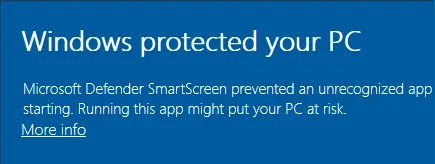
ECode-…-win-x64.exe。 - 出现蓝色窗口「Windows 已保护你的电脑」(英文系统是 Windows protected your PC)。点击 更多信息(More info)。
- 点击 仍要运行(Run anyway)。
- 按安装程序提示完成安装。ECode 装在你自己的用户目录
%LOCALAPPDATA%\Programs\ECode,不需要管理员权限。 - 从开始菜单打开 ECode。
- Double-click the downloaded
ECode-…-win-x64.exe. - A blue window titled Windows protected your PC appears. Click More info.
- Click Run anyway.
- Follow the installer to the end. ECode installs into your own user folder,
%LOCALAPPDATA%\Programs\ECode, so you do not need administrator rights. - Open ECode from the Start menu.
连接企业Connect to your enterprise
ECode 安装包里没有写入任何企业。第一次打开 ECode 时,它显示 连接企业 页面。你先把 ECode 连到公司的 Console,再登录。
The ECode installer has no enterprise built in. The first time you open ECode, it shows the Connect to your enterprise screen. You connect ECode to your company's Console first, then sign in.
连接有三种方式,任选一种:
There are three ways to connect. Use whichever suits you:
- 企业码。ECode 在 ECode 企业目录里查找它,所以电脑要能访问互联网。
- Console 地址,形如
https://<公司 ECode 地址>。地址必须以https://开头。ECode 直接访问公司的 Console,不查企业目录。客户端里把它叫作「控制台地址」。 - 一键连接链接。在公司的下载页上点击,见下面的用一键连接链接。
- Enterprise code. ECode looks the code up in the ECode enterprise directory, so your computer needs internet access.
- Console URL, in the form
https://<company ECode address>. It must start withhttps://. ECode goes straight to your company's Console and does not use the directory. - One-click connect link. You click it on your company's download page. See Use the one-click connect link below.
输入企业码或 Console 地址Enter an enterprise code or Console URL
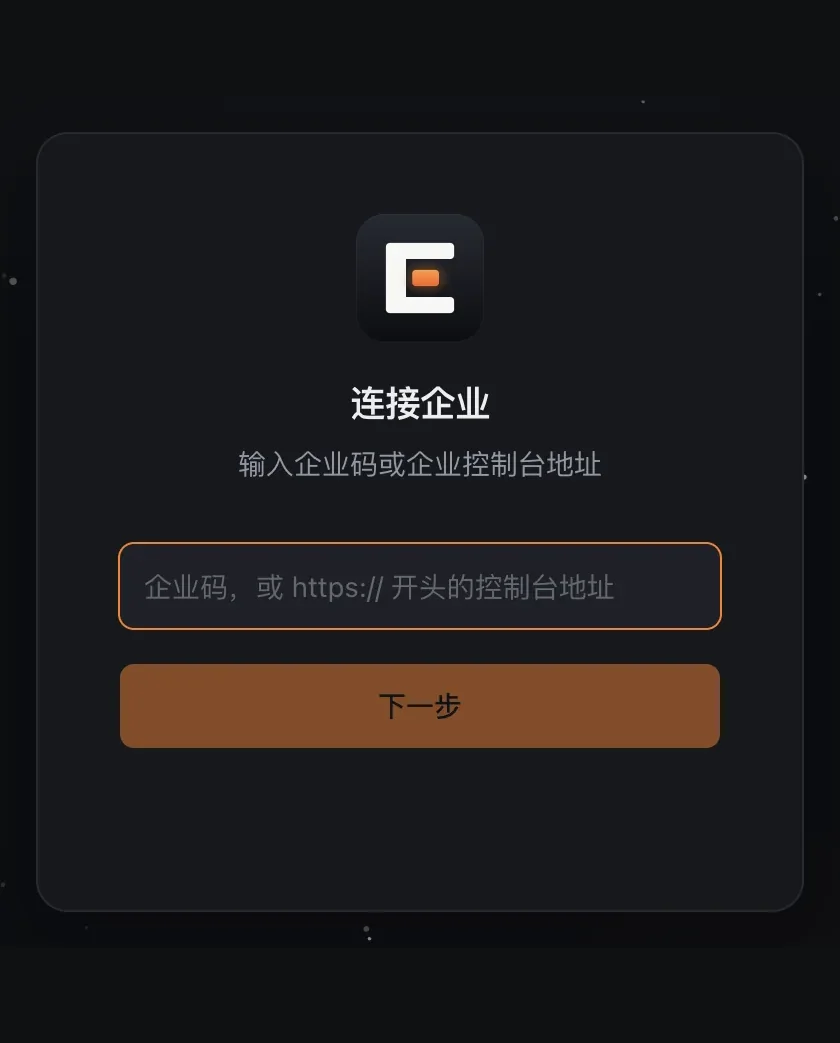
- 打开 ECode。页面标题是 连接企业。
- 在输入框里输入企业码或 Console 地址。
- 点击 下一步。按钮显示「正在查找企业…」。
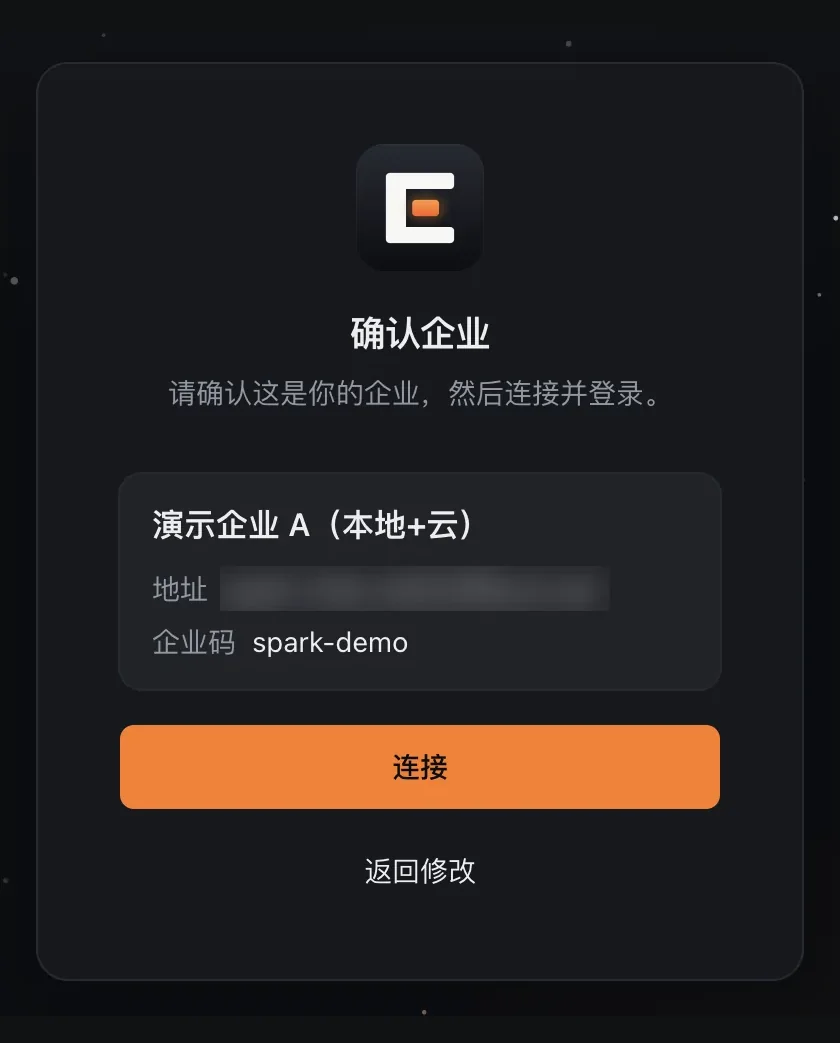
- 页面变为 确认企业。卡片上是企业名称、地址和企业码。你输入的是 Console 地址时,卡片上没有企业码。
- 核对企业名称和地址。都对,点击 连接。不对,点击 返回修改。
- ECode 显示登录卡片。接着按用公司账号登录一节登录。
- Open ECode. The screen title is Connect to your enterprise.
- Type your enterprise code or Console URL in the box.
- Click Continue. The button shows “Looking up your enterprise…”.
- The screen changes to Confirm your enterprise. The card shows the enterprise name, the Address and the Code. If you entered a Console URL, the card has no code.
- Check the enterprise name and address. If both are right, click Connect. If not, click Back.
- ECode shows the sign-in card. Continue with Sign in with your work account.
点击 连接 之前,ECode 不保存任何设置。
ECode saves nothing until you click Connect.
用一键连接链接Use the one-click connect link
- 先按安装一节装好 ECode。
- 在浏览器打开公司的下载页,找到 已安装客户端? 一栏。
- 点击 在客户端中连接本企业。
- 浏览器询问是否打开 ECode,点击允许。
- ECode 打开 连接企业 页面,输入框里已经填好公司的 Console 地址。点击 下一步。
- 在 确认企业 页面核对企业名称和地址,点击 连接。
- Install ECode first, as described in Install.
- Open your company's download page in your browser and find the Already installed? panel.
- Click Connect the client to this enterprise.
- When the browser asks whether to open ECode, allow it.
- ECode opens Connect to your enterprise with your company's Console URL already in the box. Click Continue.
- On Confirm your enterprise, check the enterprise name and address, then click Connect.
一键连接链接只帮你填好输入框。连接前,你仍要自己确认企业名称。
The link only fills in the box for you. You still confirm the enterprise name yourself before you connect.
用公司账号登录Sign in with your work account
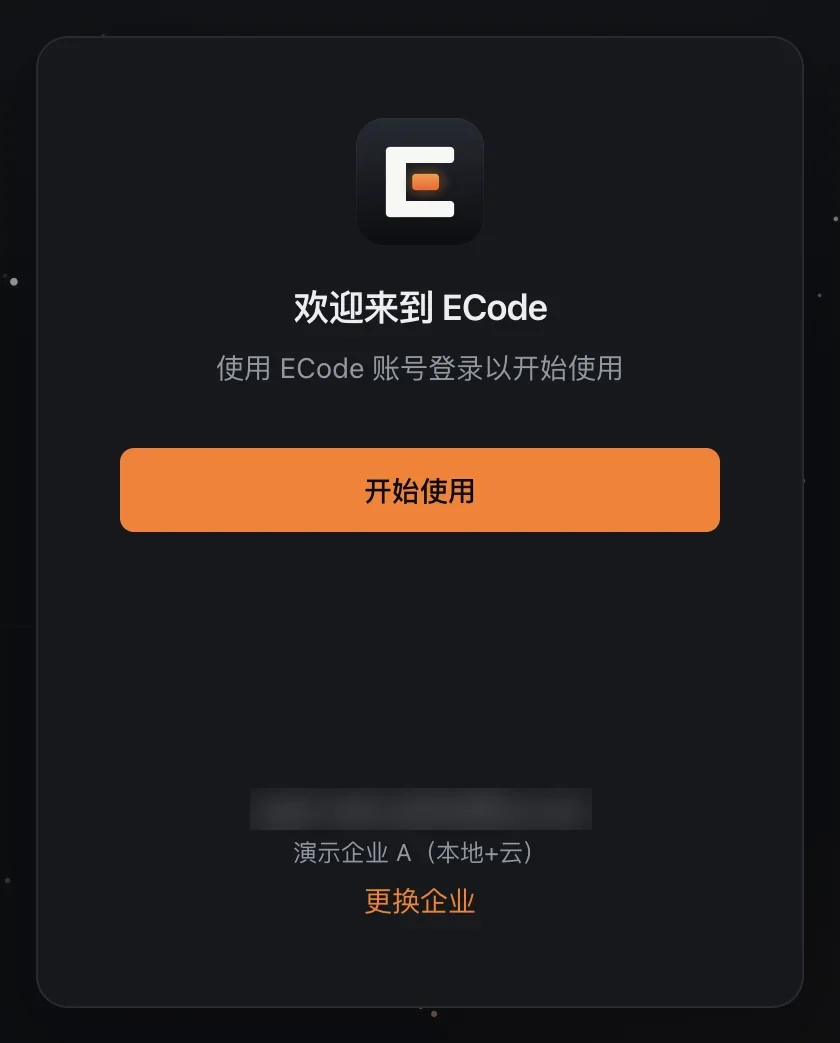
- 连接企业后,ECode 显示登录卡片。卡片下方是当前企业的地址和名称。
- 核对企业名称,点击 开始使用。连错了企业时,点击 更换企业,回到连接企业页面。
- 浏览器自动打开公司的登录页。点击 使用 …… 登录 按钮,按钮上是公司身份源的名字。
- 用公司账号和密码登录。公司开了多因素认证时,按提示完成。
- 浏览器显示「欢迎回来」。点击 打开应用。
- 浏览器询问是否打开 ECode,点击允许。
- 回到 ECode。左下角显示你的名字,说明登录成功。
- After you connect, ECode shows the sign-in card. The bottom of the card shows the address and name of the current enterprise.
- Check the enterprise name and click Get Started. If you connected to the wrong enterprise, click Change to go back to the connect screen.
- Your browser opens your company's sign-in page. Click the Sign in with … button, which carries the name of your company's identity provider.
- Sign in with your work account and password. If your company uses multi-factor authentication, follow the prompts.
- The browser shows Welcome back. Click Open app.
- When the browser asks whether to open ECode, allow it.
- Go back to ECode. Your name in the bottom-left corner means you are signed in.
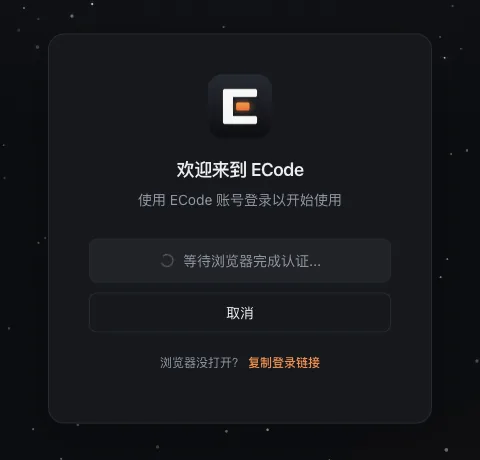
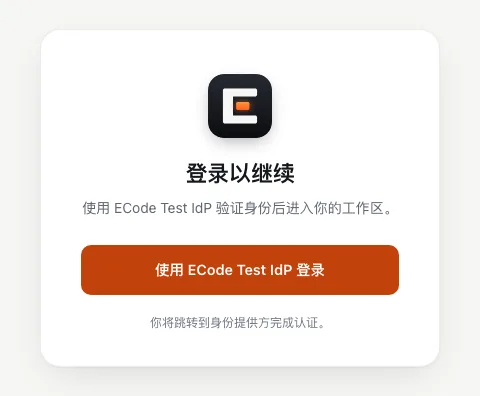
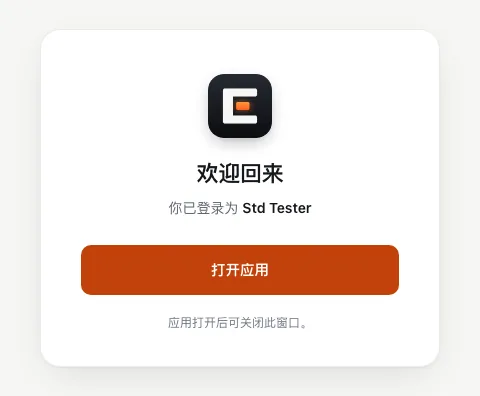
浏览器没有自动打开时,点击 ECode 里的 复制登录链接,粘贴到浏览器地址栏。
If the browser does not open by itself, click Copy login link in ECode and paste the link into your browser's address bar.
第一次登录时,公司系统自动给你开账号和额度。你不需要另外申请。
The first time you sign in, the company system creates your account and quota automatically. You do not need to request them.
ECode 记住你连接的企业。正常重启 ECode 后,它仍连接同一个企业,你也仍在登录状态。
ECode remembers the enterprise you connected to. After a normal restart, it stays connected to the same enterprise and you stay signed in.
注意。每名员工用自己的电脑系统账户登录 ECode。不要和同事共用一个系统账户:同事退出、你在同一个系统账户里登录后,ECode 的侧边栏仍会列出同事的本地任务。
Warning. Each employee uses ECode under their own computer user account. Do not share a user account with a colleague. If a colleague signs out and you sign in under the same user account, the ECode sidebar still lists the colleague's local tasks.
切换企业Switch enterprise
多数员工只连接一个企业。IT 让你改连另一个 Console 时,按下面的步骤切换企业。
Most employees only ever connect to one enterprise. When IT asks you to move to another Console, switch enterprise as follows.
注意。切换企业会让你退出登录。ECode 同时清除已保存的企业连接和模型列表。
Warning. Switching enterprise signs you out. ECode also clears the saved enterprise connection and the model list.
- 点击左下角你的名字,打开账户菜单。
- 点击 切换企业。
- 弹窗 切换企业? 写着「将退出当前账号,然后回到“连接企业”页面。」点击 退出并切换。点击 取消 则什么都不改。
- ECode 退出登录,清除企业连接和模型列表,然后自动重启。
- 重启后显示 连接企业 页面。按连接企业一节连接新的企业,再按用公司账号登录一节登录。
- Click your name in the bottom-left corner to open the account menu.
- Click Switch enterprise.
- The Switch enterprise? dialog says “You will be signed out and go back to Connect to your enterprise.” Click Sign out and switch, or click Cancel to change nothing.
- ECode signs you out, clears the enterprise connection and the model list, and restarts.
- After the restart, ECode shows Connect to your enterprise. Connect to the new enterprise, then sign in.
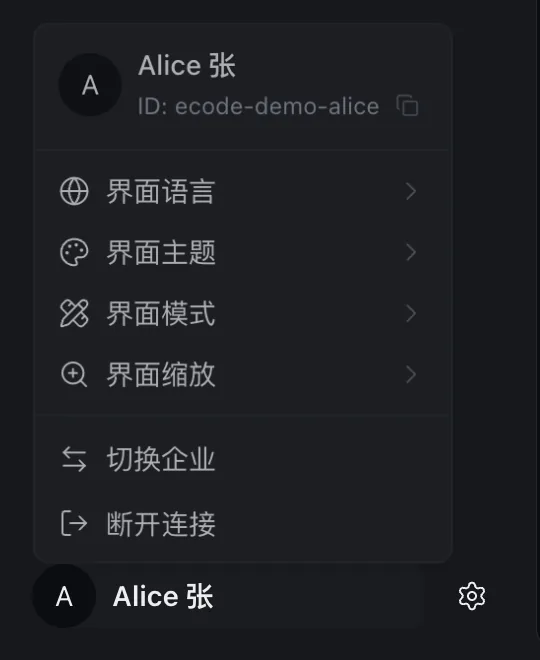
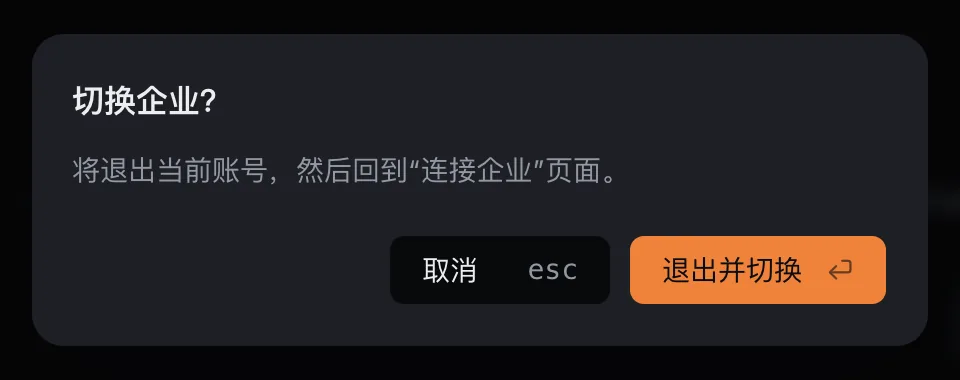
已登录时打开一键连接链接,ECode 也先弹出 切换企业?,写明要连接的地址或企业码。点击 退出并切换 后,ECode 重启,连接企业页面已填好链接里的值。你仍要点击 下一步 和 连接。点击 取消 则保留当前企业,也保持登录。
If you open a one-click connect link while signed in, ECode also shows Switch enterprise? first, naming the address or code it will connect to. Click Sign out and switch, and ECode restarts with the connect screen filled in from the link. You still click Continue and Connect. Click Cancel to keep the current enterprise and stay signed in.
选择模型Pick a model
- 点击输入框右下角的模型名(没有选过时显示 选择模型)。
- 在 ECode MaaS 下面的列表里选一个模型。
- 拖动 思考强度 滑块。强度越高,回答越慢,但想得更多。
- Click the model name at the bottom right of the input box. If you have not picked a model yet, it reads Select model.
- Pick a model from the list under ECode MaaS.
- Drag the Effort slider. Higher effort gives slower answers that think harder.
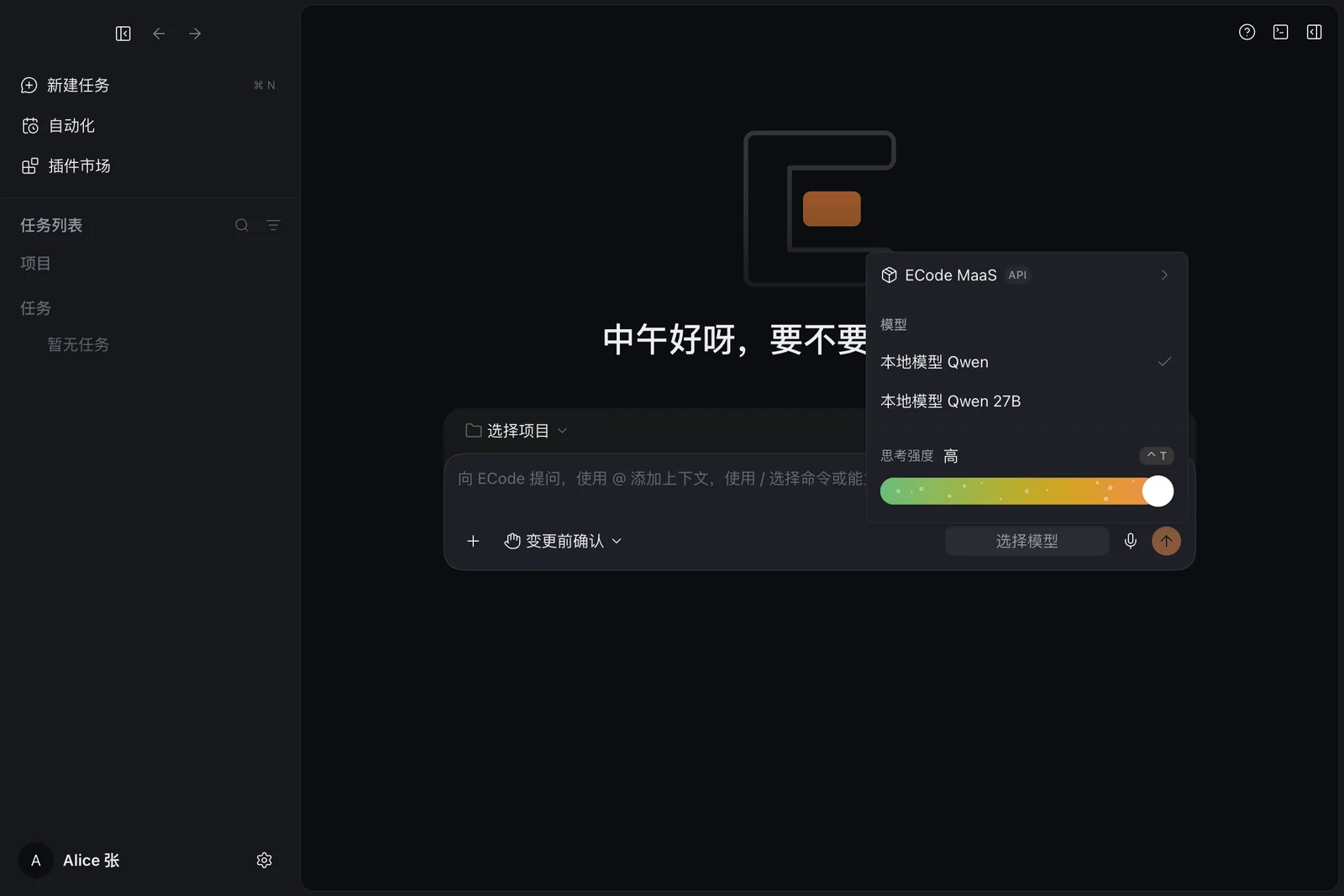
模型有两类:
There are two kinds of model:
| 类型Kind | 在哪里运行Where it runs | 说明Notes |
|---|---|---|
| 本地模型Local models | 公司自己的服务器Your company's own servers | 代码和对话不离开公司网络。参考环境有两个:local-qwen(Qwen3.8 Flash Next,主模型)和 local-qwen-27b(Qwen3.8-27B)。Code and conversations stay inside the company network. The reference environment has two: local-qwen (Qwen3.8 Flash Next, the main model) and local-qwen-27b (Qwen3.8-27B). |
| 云端模型Cloud models | 云端模型服务A cloud model service | 只有公司开通后才出现在列表里。用云端模型时,请求会发到公司网络之外。参考环境开通了三个云端模型,名字都带「(云端)」。They appear in the list only after your company turns them on. Requests to a cloud model leave the company network. The reference environment turns on three cloud models, and each name carries the tag “(云端)” (cloud). |
公司服务器同一时间只运行一个本地模型。选了一个没在运行的模型时,请求会失败。这时换回另一个模型,或联系 IT。
Your company's servers run one local model at a time. If you pick a model that is not running, your requests fail. Switch back to the other model, or contact IT.
公司的模型列表有变化时,重启 ECode 后生效。
When your company changes the model list, restart ECode to pick up the change.
额度是什么How quotas work
公司给每个员工设了额度,防止少数人占满服务器。额度有三部分:
Your company gives each employee a quota so that a few people cannot tie up the servers. A quota has three parts:
- 预算:一个周期内能用的量。参考环境默认每 30 天 20 个额度单位,到期自动重置。
- 每分钟请求数:参考环境默认每分钟 60 次。
- 可用模型:你能用哪些模型。
- Budget. How much you can use in one period. The reference environment defaults to 20 quota units every 30 days, and the budget resets automatically at the end of each period.
- Requests per minute. The reference environment defaults to 60.
- Available models. The models you are allowed to use.
额度单位是内部计量,不是钱。本地模型不向你收费。粗略估算,用本地模型时一次智能体请求约耗 0.005 单位,预算 20 大约够 3800 次请求。一个任务通常包含多次请求。这是估算,实际取决于你的项目大小和对话长度。参考环境里,云端模型每个 token 耗的额度是本地模型的 10 倍。
Quota units are an internal measure, not money. Local models cost you nothing. As a rough guide, one agent request on a local model uses about 0.005 units, so a budget of 20 covers about 3,800 requests. A single task usually makes several requests. This is an estimate. The real figure depends on the size of your project and the length of the conversation. In the reference environment, a cloud model token uses 10 times the quota of a local model token.
超出额度时,ECode 的请求会被拒绝:
When you go over your quota, ECode's requests are refused:
- 超过每分钟请求数:等一分钟再试。
- 预算用完:等周期重置,或请 IT 调高。
- Over the requests-per-minute limit: wait a minute and try again.
- Budget used up: wait for the period to reset, or ask IT to raise it.
1.0 客户端里没有额度页面。你的已用额度由 IT 在公司后台查看。
The 1.0 client has no quota page. IT checks your usage in the company Console.
数据存在哪里Where your data lives
- ECode 的设置、会话记录、插件和技能,存在你电脑上的
~/.ecode目录。macOS 上是/Users/<你的用户名>/.ecode。Windows 上是C:\Users\<你的用户名>\.ecode。Windows 上应用自身还有一部分数据,在C:\Users\<你的用户名>\AppData\Roaming\ECode。 - 项目自己的 ECode 配置,存在项目根目录的
.ecode/文件夹。 - 你发给模型的内容会经过公司的模型网关。网关记录每次请求的用量(token 数、模型、时间),供 IT 管理额度。
- ECode keeps its settings, session history, plugins and skills in the
~/.ecodefolder on your computer. On macOS that is/Users/<your user name>/.ecode. On Windows it isC:\Users\<your user name>\.ecode, and the app keeps some data of its own inC:\Users\<your user name>\AppData\Roaming\ECode. - A project's own ECode settings live in the
.ecode/folder at the project root. - Everything you send to a model passes through your company's model gateway. The gateway records the usage of each request (token count, model and time) so that IT can manage quotas.
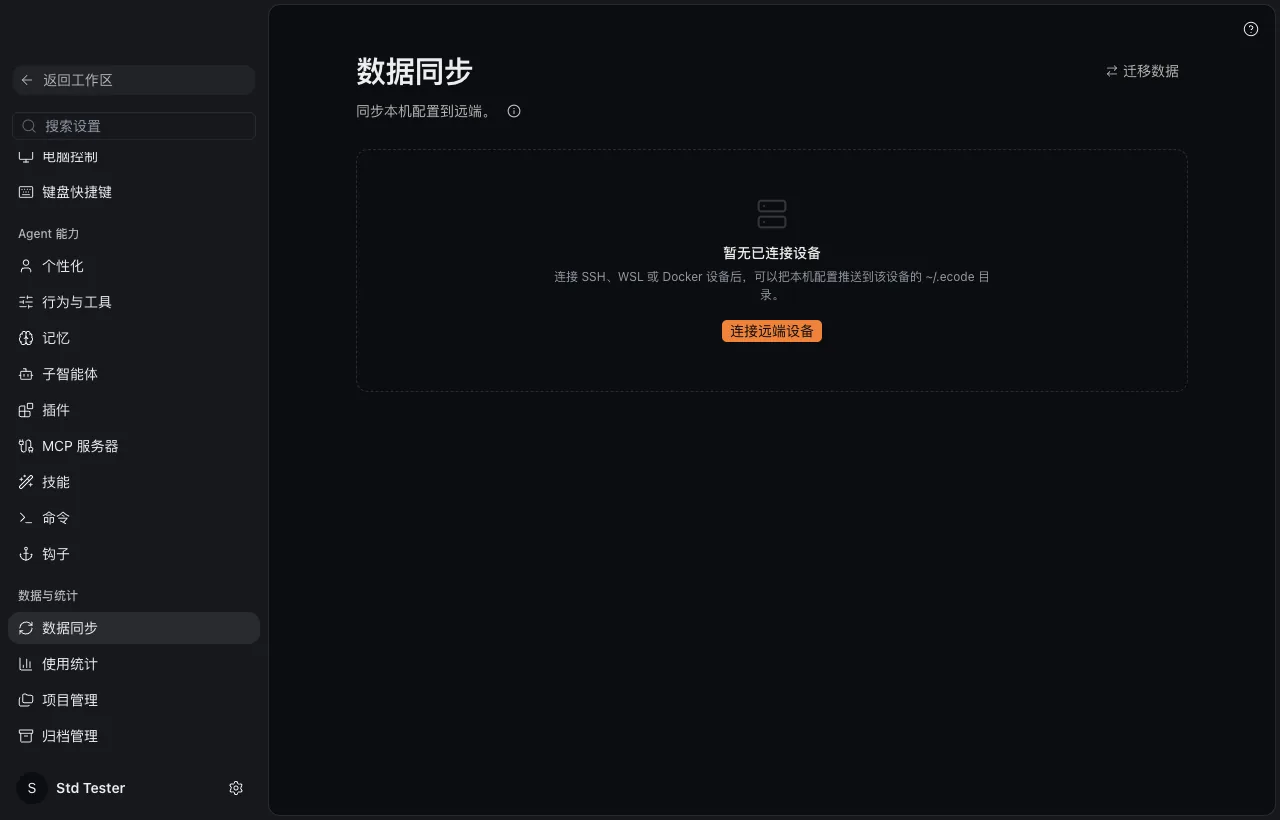
~/.ecode 目录。Settings → Data sync. Remote devices use the ~/.ecode folder too.注意。删除 ~/.ecode 会清掉你的全部 ECode 会话和设置,而且不能恢复。
Warning. Deleting ~/.ecode erases all of your ECode sessions and settings, and they cannot be recovered.
独立的应用和数据A separate app with its own data
ECode 是一个独立的应用,有自己的数据、项目配置和账号:
ECode is a separate app with its own data, project settings and account:
- 数据目录:ECode 的数据放在
~/.ecode。 - 项目配置:ECode 读项目根目录的
.ecode/文件夹。 - 账号:ECode 只能用公司账号登录。
- macOS 的右键菜单里,ECode 有自己的「Open in …」入口。
- Data. ECode keeps its data in
~/.ecode. - Project settings. ECode reads the
.ecode/folder at the project root. - Account. ECode signs in with your work account only.
- macOS. The right-click menu has its own “Open in …” entry for ECode.
写公司代码时用 ECode。这样代码只发给公司的模型。
Use ECode for company code. That way your code goes only to your company's models.
遇到问题Troubleshooting
| 现象What you see | 先试这个Try this first |
|---|---|
| 下载页或登录页打不开The download page or the sign-in page does not open | 确认电脑已按 IT 的说明接入公司网络。Check that your computer has joined the company network as IT described. |
| 下载页提示密钥无效The download page says your key is invalid | 密钥可能已被轮换或停用。向 IT 要新密钥。The key may have been rotated or disabled. Ask IT for a new one. |
| 连接企业时提示「找不到这个企业码」或「无法连接企业目录」Connecting says “No enterprise has this code” or “The enterprise directory is unreachable” | 核对企业码。企业码查找需要访问互联网。也可以改用 Console 地址,或用下载页上的一键连接链接。Check the code. Looking up a code needs internet access. You can also enter the Console URL, or use the one-click connect link on the download page. |
| 连接企业时提示「此客户端不支持企业码。请输入控制台地址。」Connecting says “This client cannot look up enterprise codes. Enter the Console URL.” | 这个 ECode 客户端关闭了企业码查找。输入 Console 地址,或用下载页上的一键连接链接。Enterprise code lookup is turned off in this ECode client. Enter the Console URL, or use the one-click connect link on the download page. |
| 连接企业时提示「无法连接这个控制台」或「这个地址不是 ECode 企业控制台」Connecting says the Console is unreachable, or that the address is not an ECode Console | 确认已连上公司网络。核对 Console 地址,它以 https:// 开头,就是下载页地址去掉 /about。Check that you are on the company network. Check the Console URL. It starts with https:// and is the download page address without /about. |
| 确认企业页面上的企业名称不对The enterprise name on Confirm your enterprise is wrong | 不要点击 连接。点击 返回修改,向 IT 确认企业码或 Console 地址。Do not click Connect. Click Back and check the code or Console URL with IT. |
| 登录后浏览器没有跳回 ECodeAfter sign-in, the browser does not return to ECode | 在「欢迎回来」页再点一次 打开应用,或在 ECode 里点 复制登录链接 重新登录。Click Open app again on the Welcome back page, or click Copy login link in ECode and sign in again. |
| 第一次提问很久才回答The first answer takes a long time | 公司服务器上的模型可能刚启动,或第一次处理很长的上下文。等一会儿再试。后面的提问会快一些。The model on the company server may have just started, or it is reading a long context for the first time. Wait a moment and try again. Later questions are faster. |
| 提问报错,提示请求过多An error says you sent too many requests | 超过了每分钟请求数。等一分钟。You went over your requests per minute. Wait a minute. |
| 提问报错,提示预算超限An error says your budget is exceeded | 本周期额度用完。联系 IT。Your quota for this period is used up. Contact IT. |
提问报错,提示An error says Authentication Error, Key is blocked. Update via `/key/unblock` if you're an admin. |
你的账号被停用了。这是英文原文,1.0 没有中文提示。联系 IT。IT 重新启用后,几秒内就能再用。Your account has been disabled. This is the gateway's raw message. Contact IT. Once IT enables your account again, you can work again within seconds. |
| 生成的幻灯片或文档,ECode 说页面没有做视觉检查For a generated slide deck or document, ECode says it did not check the pages visually | 1.0 的本地模型看不到图片,所以 ECode 不能检查版面。自己打开文件检查一遍。The 1.0 local models cannot see images, so ECode cannot check the layout. Open the file and check it yourself. |
| 生成的文档字体和预期不同A generated document uses an unexpected font | ECode 不能下载新字体,只用你电脑上已有的字体。需要某种字体时,先在电脑上装好它。ECode cannot download new fonts and uses only the fonts already on your computer. If you need a particular font, install it first. |
联系 IT 时,说明你用的是 ECode、遇到问题的时间、选的模型和报错原文。
When you contact IT, say that you use ECode, and give the time of the problem, the model you picked and the exact error text.
你公司的具体要求以 IT 的说明为准。
Where your company's IT instructions differ from this guide, follow IT.